
One idea per clip
Starts and ends with the point
Each clip begins where the idea does and ends where it lands, so it makes sense to someone who missed the session.
For talks & lectures
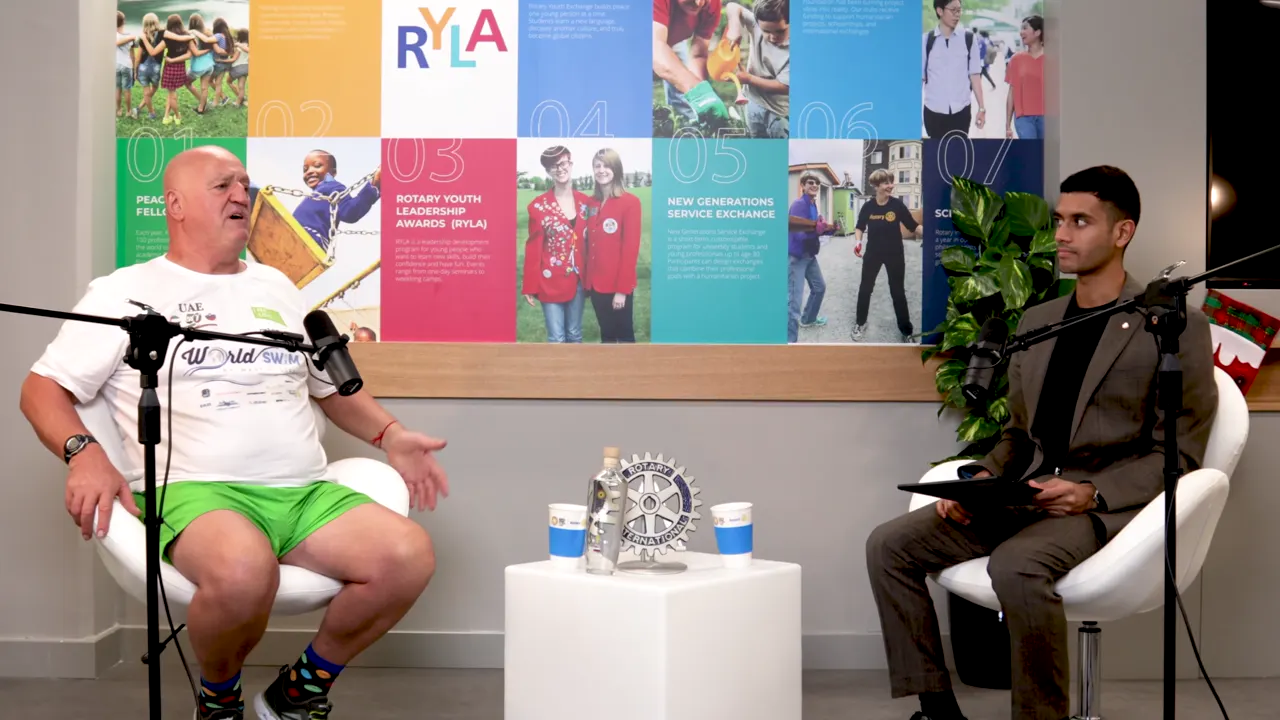
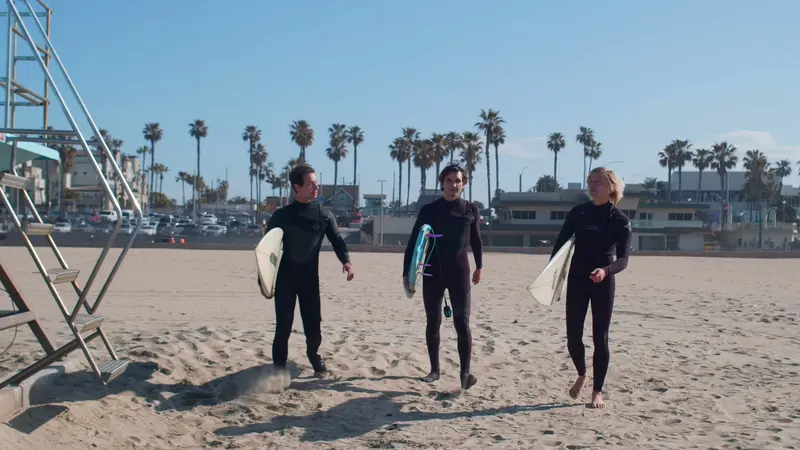
A keynote, a recorded lecture, a webinar. Kime finds the ideas that stand on their own and makes each one a short captioned clip, so the hour you recorded keeps teaching after the room has emptied.
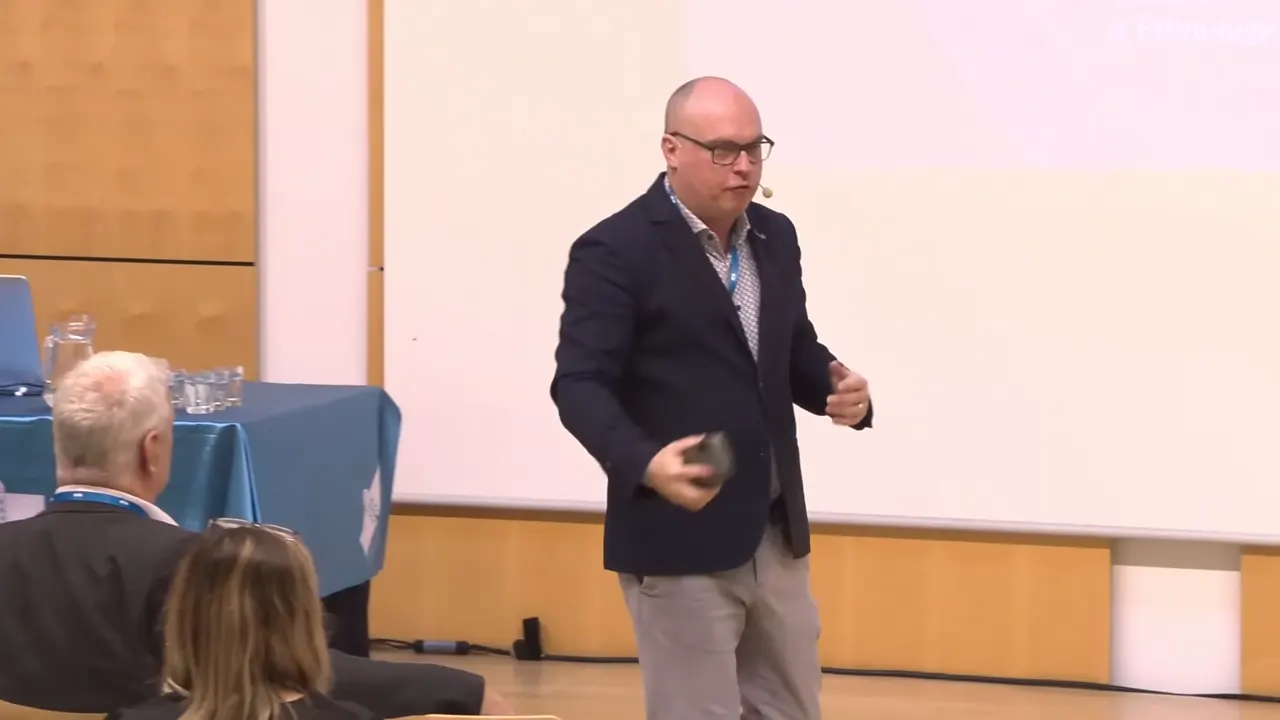
What comes out
Short enough to watch between classes, captioned for the sound off, and saved with caption files for your course site.
One idea per clip
Each clip begins where the idea does and ends where it lands, so it makes sense to someone who missed the session.
Reframe
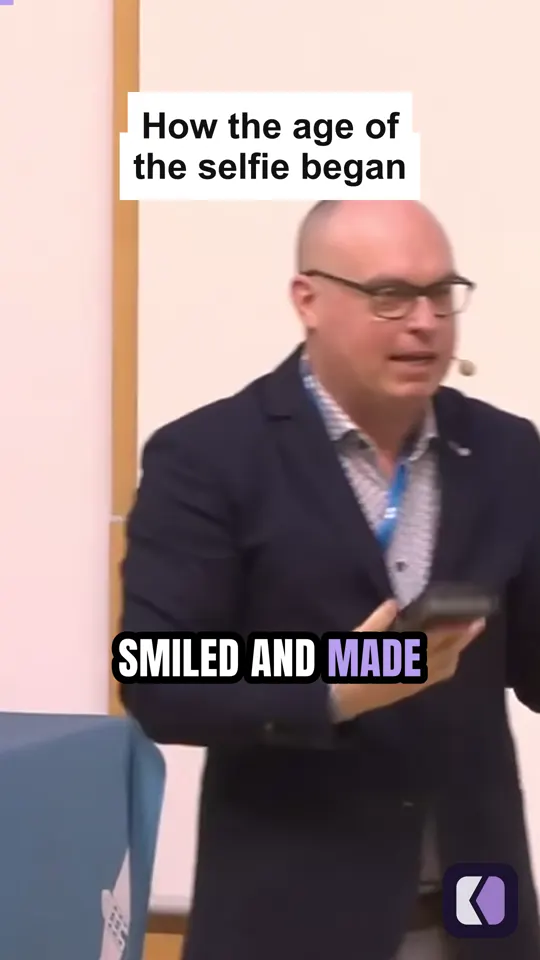
A 9:16 frame that keeps up with the speaker as they move, or the whole shot with the slides in it.
07 How the age of the selfie began.srt
1
00:00:00,040 --> 00:00:01,640
Smiled and made

2
00:00:01,640 --> 00:00:02,760
a photo of
Caption files
Every clip is saved with an .srt of its words beside it.
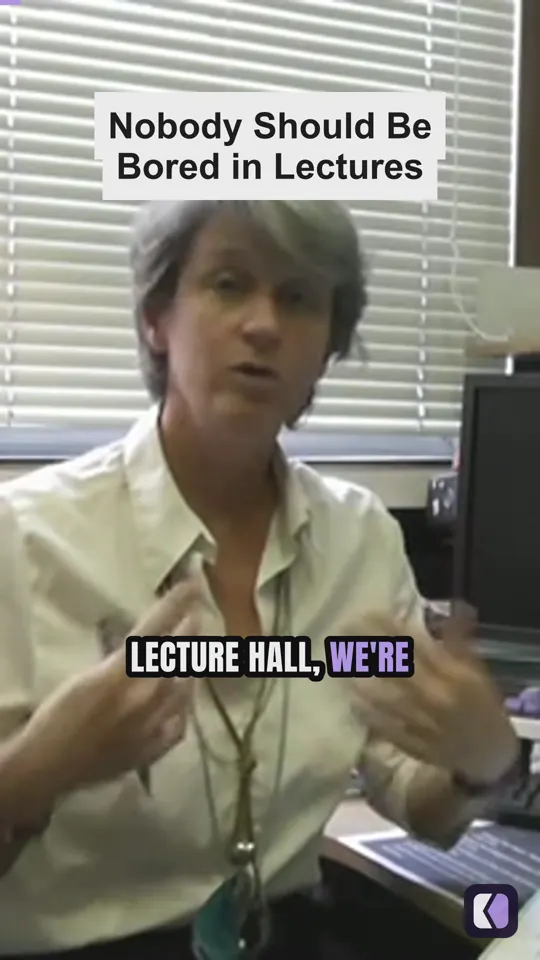
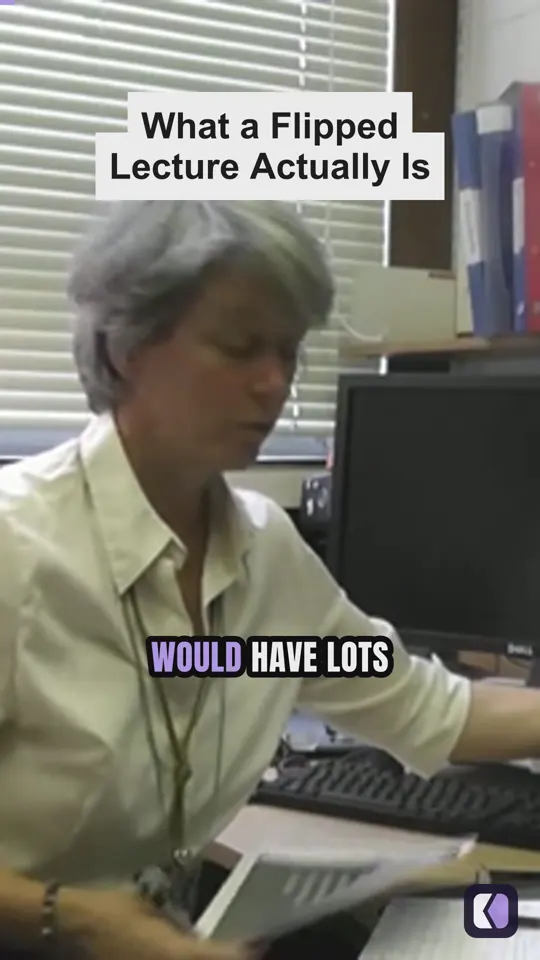
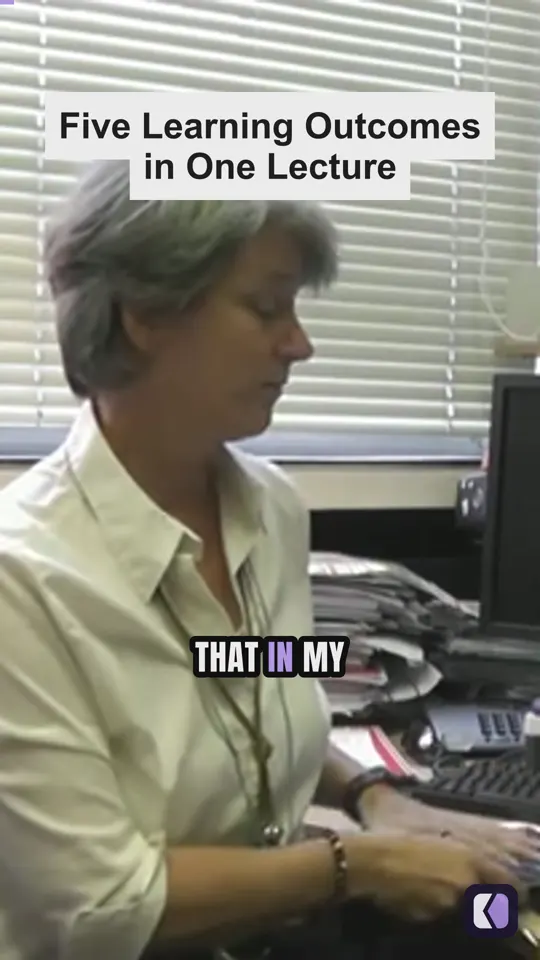
Also from a lecture
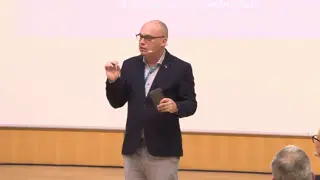
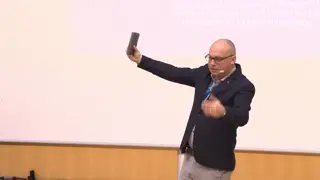
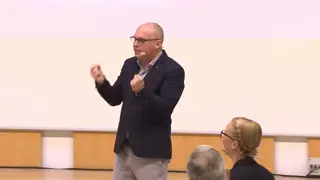
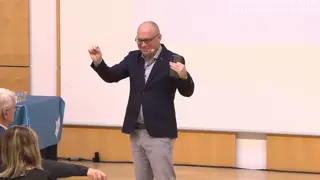
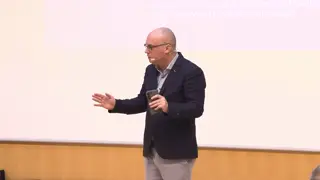
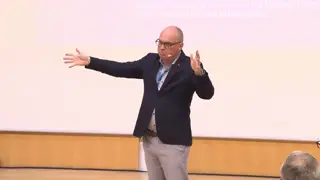
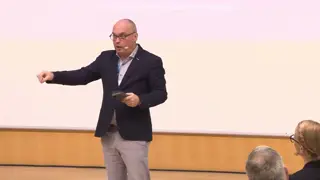
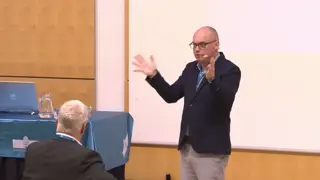
Kime AI found four clips in a 4½-minute University of Manchester lecture and made them in about 30 seconds.
A highlight cut too
The best few minutes of the talk as one video, for the people who couldn't be there.
How it works
The same four steps the app shows across its top. Every moment Kime picks stays yours to keep, trim or throw away.
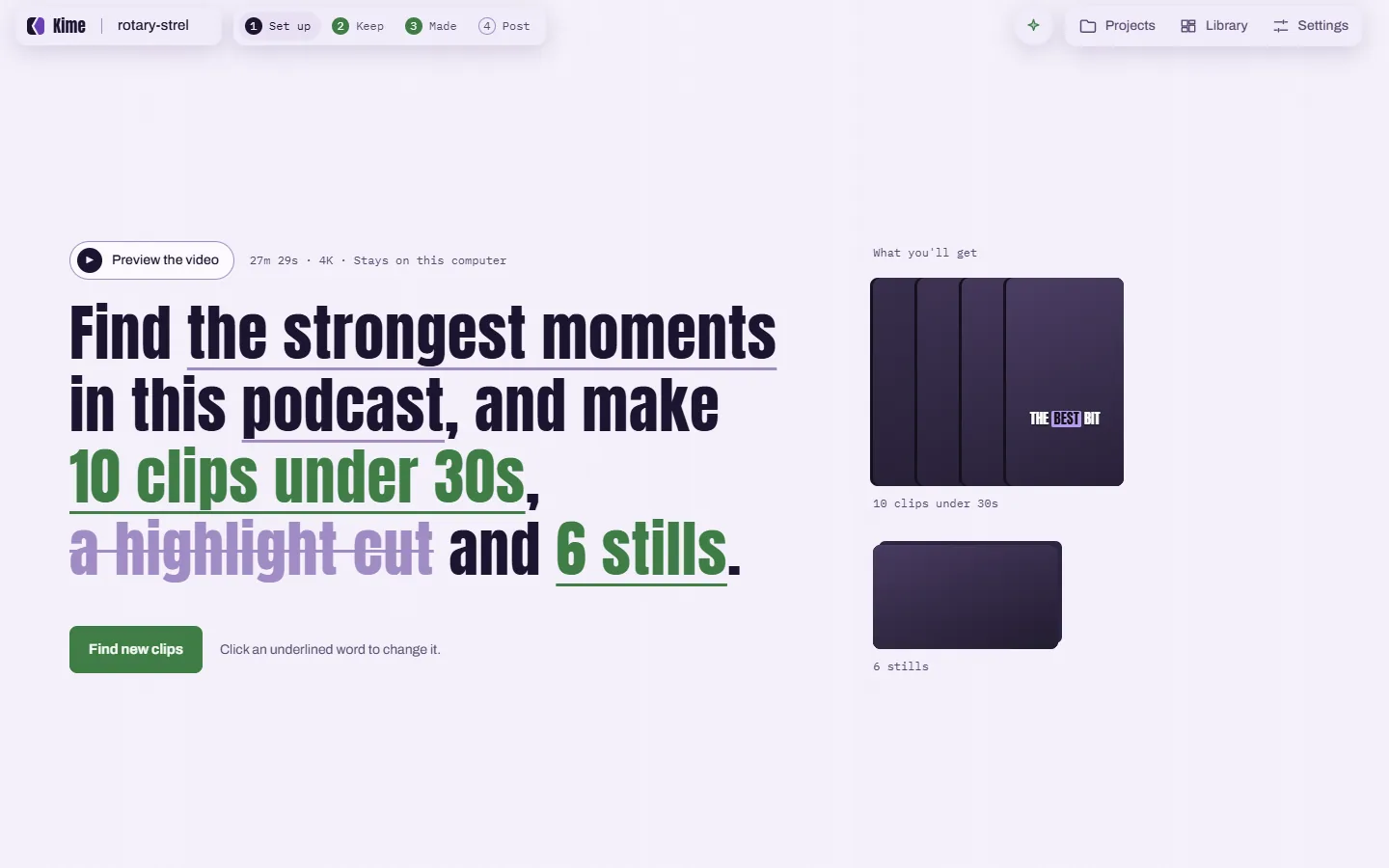
Drop in the recording and choose Clips. Steer it with a line: "one clip per learning outcome".
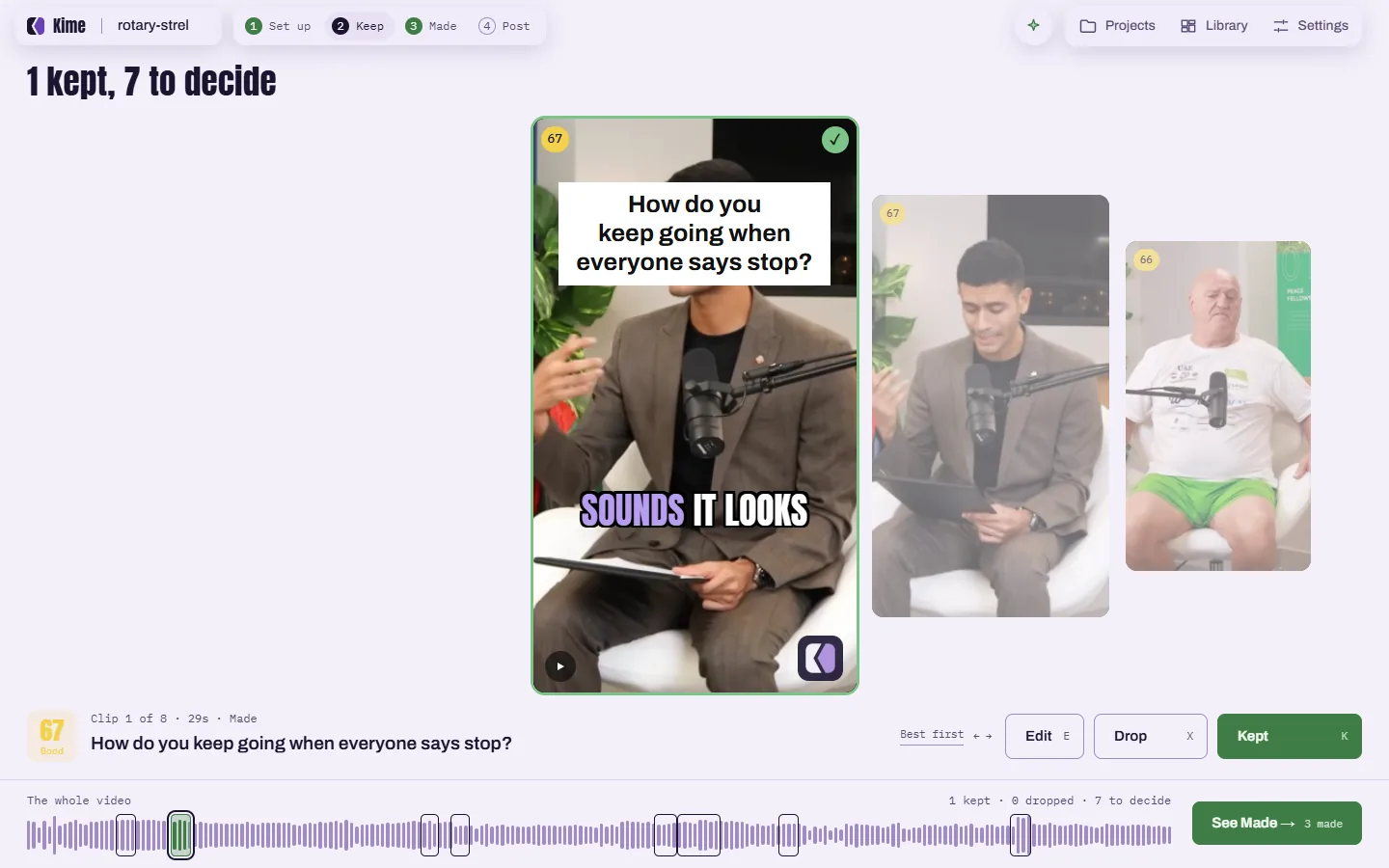
Every moment Kime picked, on the recording's timeline. Keep it, trim it by the words, or drop it.
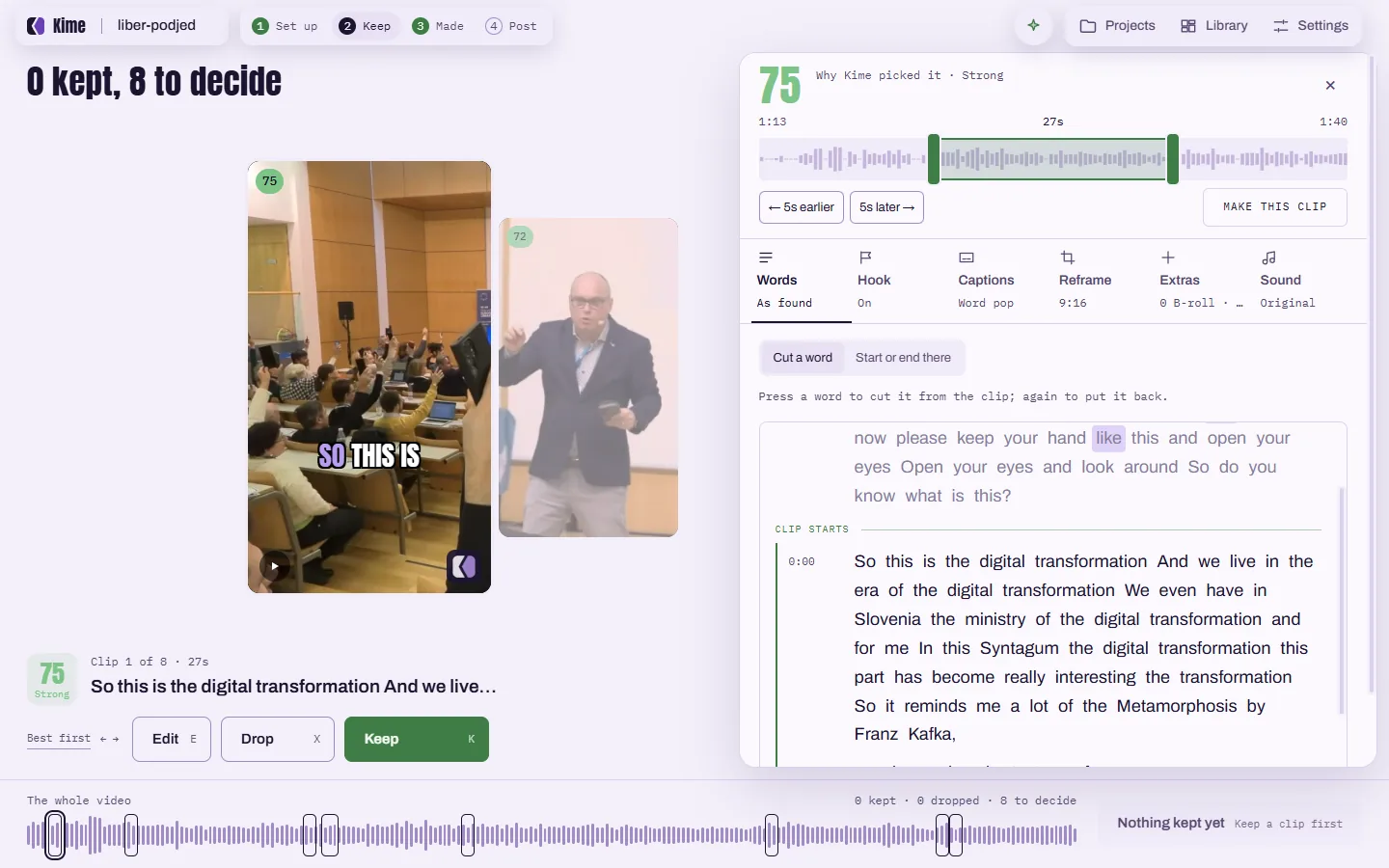
Pick the captions and the crop. Every clip saves with its .srt beside it.
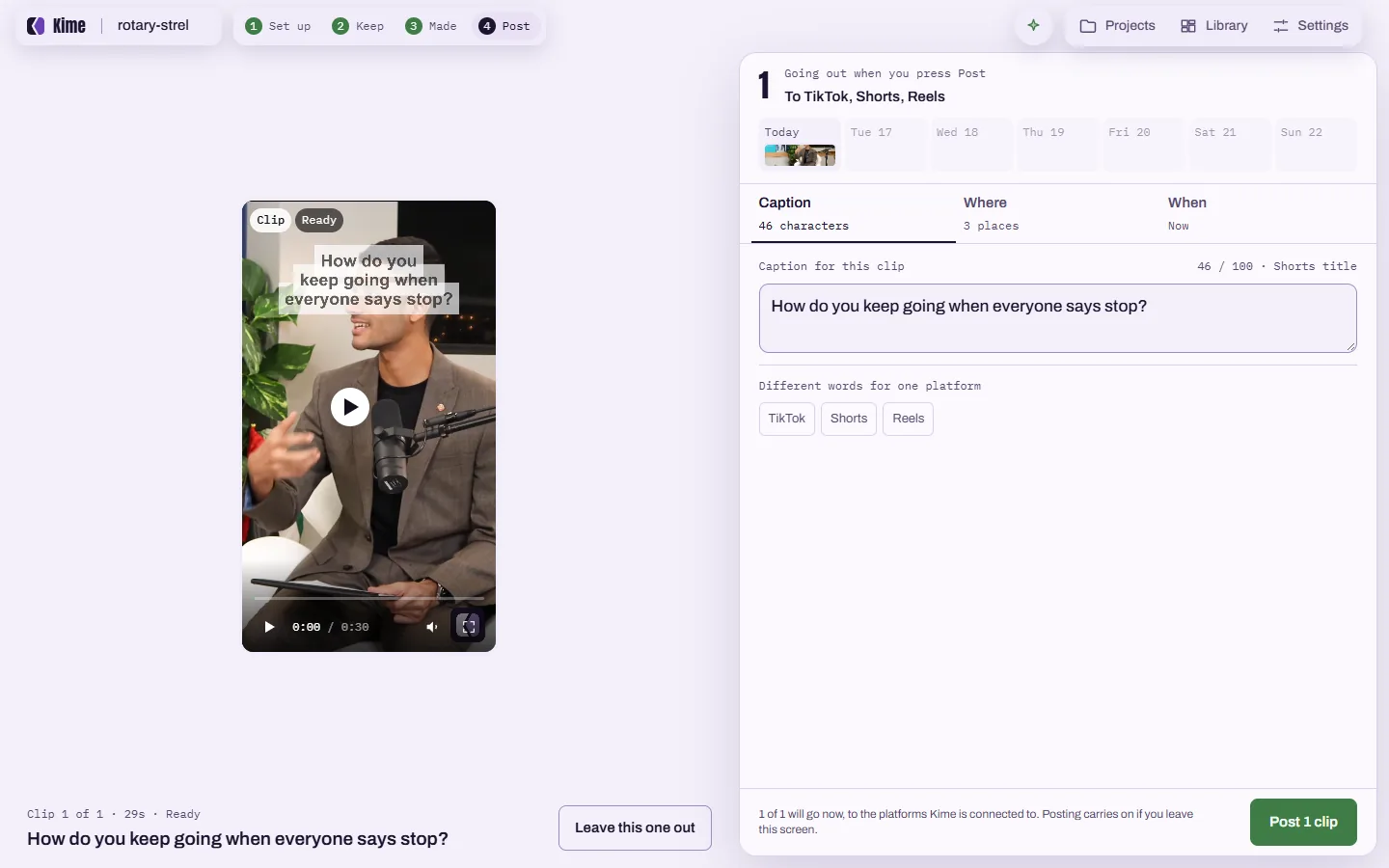
Kime writes the words for each platform and opens its upload page, or keep the files for your course site.
On your computer
Lecture and meeting recordings often can't go to a cloud service. With Kime they don't have to: Kime finds clips and captions them on your own computer. With Kime AI on for a file, it sends the words it heard and a few small snapshots, never the audio or the video.
Drop the recording into Kime and choose Clips on Set up. Kime finds the stretches that stand on their own, captions them word by word and saves each as a clip with its own .srt file.
Yes, if the recording is a video file. Kime reads MP4, MOV, MKV and INSV files, including H.264, HEVC and ProRes, which covers what Zoom, Teams and most lecture-capture systems export.
No. Your video stays on your computer. With Kime AI turned on for a file, Kime sends the words it heard and a few small snapshots to the AI, never the audio or the video.
Yes. Every clip is saved with an .srt of its words beside it.
Yes, to start: finding clips, captions, the editor and three clips from each video are free on your computer. The Kime AI plan, a monthly subscription, makes every clip and has the AI pick the moments and write the titles.
Kime is out for Windows and Mac. It's free to download, and your video stays there.
Version 0.3.6 · Windows 10 or 11 · macOS 14 or later (Intel Macs 13.4)